How to Safely Use Throwaway Emails for Free Trials
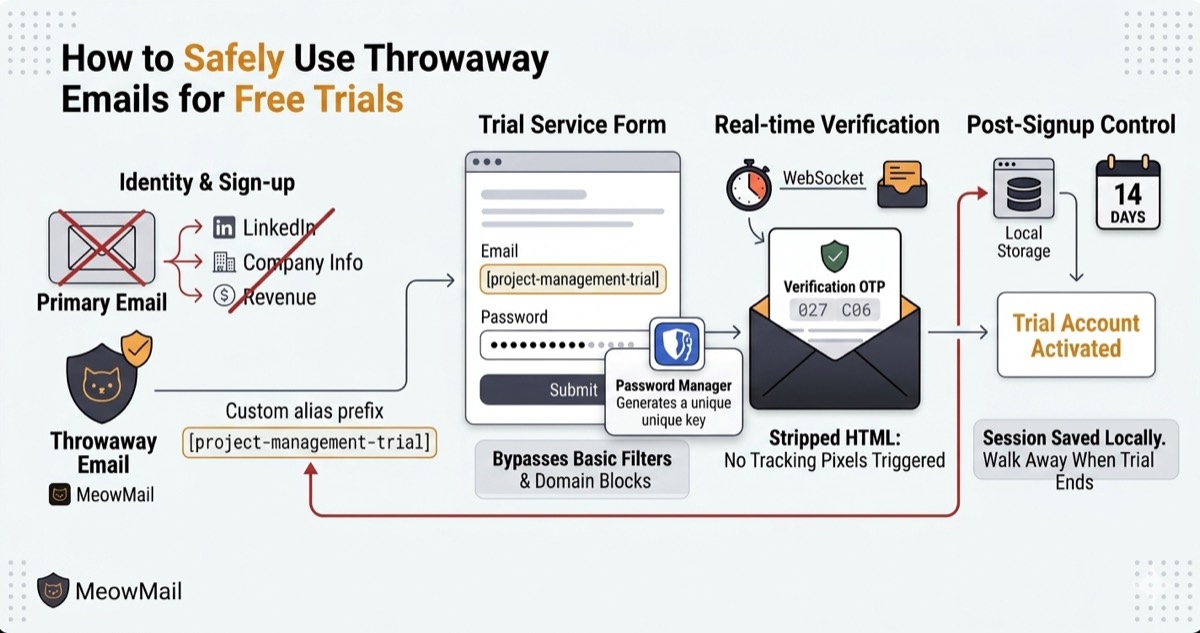
You find a new software tool. It promises to solve your exact problem. You click the pricing page. You see a 14-day free trial. You click "Start Trial." Suddenly, you face a mandatory form. It demands your work email, your phone number, and your company size.
You know exactly what happens next.
If you use your real address, the spam begins instantly. Your primary inbox receives an automated welcome sequence. Then comes the daily drip campaign. Then a sales rep emails you asking for "15 minutes on your calendar." You just want to test the tool. You do not want a relationship with their sales team.
Using a throwaway email for signups stops this cycle before it starts. You get access to the software. They get a temporary address. When the trial ends, you simply walk away. The address expires. Your real inbox remains clean.
What You'll Achieve
You will create a secure, custom temporary inbox. You will register for a free trial without exposing your real identity. You will verify the account in real-time and bypass tracking pixels. By the end, you will have a fully activated trial account tied to an auto-expiring address.
Before You Start
- A modern web browser: Use Brave, Firefox, or Chrome.
- The target URL: Have the signup page for the software you want to test open in a tab.
- A password manager: Use a tool like Bitwarden or 1Password. You will need this to generate and save a secure password for the trial.
- Zero accounts: You do not need to register for our email tool. You do not need a credit card.
- Estimated time: 3 minutes.
Step 1: Custom aliases bypass basic domain filters
You need a clean, untracked email address. This acts as a buffer between the trial service and your real identity. Instead of a random string of characters, you will create a custom alias. This keeps your trial organized and bypasses basic disposable email blocks.
Many modern software platforms use basic regular expressions to block signups. They look for suspicious patterns. A string like xkq92@ triggers their spam filters instantly. A string like project-management-trial@ looks like a legitimate corporate alias. When you use a throwaway email for signups, presentation matters.
We let you define the exact prefix you want. We do not force you into a randomized identity. We also do not require an account to use this feature. You just type your desired name and go. This is a core part of how to hide your email address online. Your real identity stays completely disconnected from the trial platform. The service only sees the custom alias you provide.
- Open a new browser tab.
- Navigate to
meowmail.in. - Locate the text input field in the center of the screen.
- Type a custom prefix related to the service you are testing.
- Click the Generate button.
- Wait two seconds for the interface to load your new temporary inbox.
✅ Check: You should see a dashboard displaying your new custom email address with an empty message list below it.
Step 2: A throwaway email for signups stops data brokers
You will now register on the target platform. The goal is to isolate this specific trial from any other marketing platforms the company uses. You will paste your new alias into their form and generate a secure password.
Your primary email address acts as a permanent identifier. Data brokers use it as a primary key. When you enter your real email into a trial form, the company often hashes it. They send that hash to massive databases. The company instantly retrieves your LinkedIn profile, your job title, and your company revenue. They buy this enrichment data to score you as a lead.
A throwaway email for signups breaks this entire chain. The data enrichment tools return zero results. You become a ghost in their system. They cannot score you. They cannot sell your data. You get to test the software in peace.
Never reuse passwords on trial accounts. These platforms often have weak security. If they suffer a data breach, your credentials will leak. Use your password manager to create a unique string for this specific test.
- Keep your temporary inbox tab open.
- Switch to the tab containing the trial registration form.
- Return to the inbox tab and click the Copy icon next to your new address.
- Paste this address into the email field on the trial form.
- Open your password manager.
- Generate a random 16-character password.
- Save the login details in your password manager.
- Paste the password into the trial form.
- Submit the registration form.
✅ Check: The trial service should display a confirmation screen asking you to check your email for a verification code or link.
Step 3: Real-time WebSockets deliver verification codes instantly
Trial services require email verification. They need proof that you control the address you provided. Because your temporary inbox uses real-time WebSockets, the verification email will appear instantly. You do not need to refresh the page.
Old temporary email sites force you to hit a refresh button. They rely on outdated polling technology. You click refresh, wait five seconds, and hope the email arrived. This causes serious problems with modern security systems. Many platforms issue one-time passwords (OTPs) that expire in 60 seconds. If your inbox delays the message, the code dies before you can use it.
We built our infrastructure differently. We maintain an open WebSocket connection with your browser. The millisecond our server receives the email from the trial service, it pushes the message directly to your screen. This speed is crucial for getting verification codes fast with temp mail. You keep the tab open. The email drops in. You proceed immediately.
- Switch back to your temporary inbox tab.
- Watch the empty message list. Do not refresh the browser.
- Wait for the new email row to appear.
- Click on the email row to open the message.
- Locate the 6-digit verification code or the confirmation button inside the email body.
✅ Check: The email should display the correct sender name and contain the specific code or link required by the trial service.
Step 4: Stripped HTML protects against tracking pixels
Marketing emails contain hidden tracking pixels. You need to open the email and find the verification link. You must do this without triggering unnecessary tracking scripts.
A tracking pixel is a tiny, invisible image. Senders embed it deep in the HTML of the email. When you open the message, your email client downloads that image from their server. This download logs your IP address. It logs the exact time you opened the email. It logs the type of device you are using. This is exactly how marketers know you read their message.
When you use a throwaway email for signups, you want to avoid this surveillance entirely. We sanitize the incoming emails before displaying them to you. We strip out malicious scripts. We give you clear access to the plain text and the necessary links. You click the confirmation button safely. The trial service registers the click. Your trial activates. They learn absolutely nothing else about your local environment.
- Highlight the 6-digit code in the email body.
- Copy the code to your clipboard.
- Switch back to the trial registration tab.
- Paste the code into the verification field.
- Click the Verify button.
- If the email uses a link instead of a code, right-click the link.
- Select Copy link address.
- Paste the link into the URL bar of your trial tab and press Enter.
✅ Check: Your trial account should now load completely. You should have full access to the software dashboard.
Step 5: Local storage keeps your inbox accessible for the whole trial
A software trial usually lasts 7 to 14 days. You might need to log back into the service later. You might trigger a secondary verification check if you change IP addresses. You will save your inbox session locally. This lets you return to it without creating an account.
Most privacy tools force a bad tradeoff. They either delete your data instantly, or they force you to create an account to save it. Creating an account defeats the entire purpose of anonymity. We use your browser's local storage instead.
When you generate an inbox, your browser remembers the alias. Our servers do not track who owns which inbox. We maintain a strict no-logs policy. But your local browser keeps a private record. If you close the tab today, you can open our site tomorrow. The interface will read your local storage. It will restore your access to that specific alias automatically.
The emails themselves auto-expire to keep the servers clean. But the address remains yours to use for the duration of the trial.
- Look at the sidebar or settings menu in your temporary inbox.
- Verify that your custom alias appears in the recent history list.
- Close the browser tab entirely.
- Open a new tab and navigate back to
meowmail.in. - Click on your custom alias in the history list to reopen the inbox.
✅ Check: The inbox should load successfully. You should retain control of the address without needing to log in.
Troubleshooting
The service rejected the email address
Some strict platforms block known temporary domains. They maintain lists of services that provide throwaway emails. If the form rejects your address immediately, the domain is likely flagged.
Fix: Try generating a new inbox using a different custom prefix. Avoid words like "test", "temp", or "spam". Use a realistic looking name like "marketing-team" or "design-project". If the service still rejects it, they might require a paid corporate domain.
The verification email never arrived
Email delivery involves multiple servers. Sometimes the sender's mail server processes outgoing messages slowly. Sometimes their system batches verification emails and sends them every five minutes.
Fix: Wait 60 seconds. Check the spelling of the custom alias you typed into the trial form. Ensure you copied it exactly. If you misspelled the prefix by even one letter, the email will route to a different inbox. Go back to the trial form and request a new code.
The confirmation link goes to a blank page
Many modern web applications rely heavily on session cookies. If you click a verification link and it opens in a new browser window, that new window might not share the cookies from your original session. The application gets confused and loads a blank screen.
Fix: Do not left-click the verification link. Right-click the link inside the email. Select "Copy link address". Switch to the exact browser tab where you started the trial registration. Paste the link directly into the URL bar and press Enter. This keeps your session cookies intact.
I lost access to my temporary inbox
Your access relies on your browser's local storage. If you clear your browser cookies, run a strict privacy cleaner, or use Incognito mode, the local storage gets wiped when you close the window.
Fix: You cannot recover the exact alias once the local storage is gone. Our servers do not know who you are. Generate a new throwaway email for signups. Restart the trial registration process from the beginning using the new address.
What to Do Next
Now that you have a working trial account, you can test the software without the marketing noise. Take your time exploring the features. When the trial period ends, you simply walk away. The temporary email will expire on its own. The company has no way to contact you. They cannot sell your data. They cannot spam your primary inbox.
If you want to dive deeper into digital privacy and protect your real identity online, explore these resources next.
Further reading:
- How to Hide Your Email Address Online - A complete guide to compartmentalizing your digital identity across the web.
- Getting Verification Codes Fast with Temp Mail - Bypass strict OTP timers without handing over your real address.
- Why You Need a Privacy-First Temporary Email - How data brokers monetize your primary address, and what a disposable inbox actually stops.
Related Reading
Try MeowMail free
Generate a private, disposable inbox in one click. No signup, no tracking.
Get a temporary inbox